Hide formulas in Excel

Last updated on 06/08/2025
Reading time : 2 minutes

To protect your formulas in Excel, you can either hide them or embed them in a LAMBDA function.

Hide a formula from the cell protection options

To make a formula invisible in the formula bar, we will use the principle of locking a cell. In the world of finance, where calculations are very complex, such as decreasing depreciation, you have to protect your formulas.

Decreasing depreciation function to hide
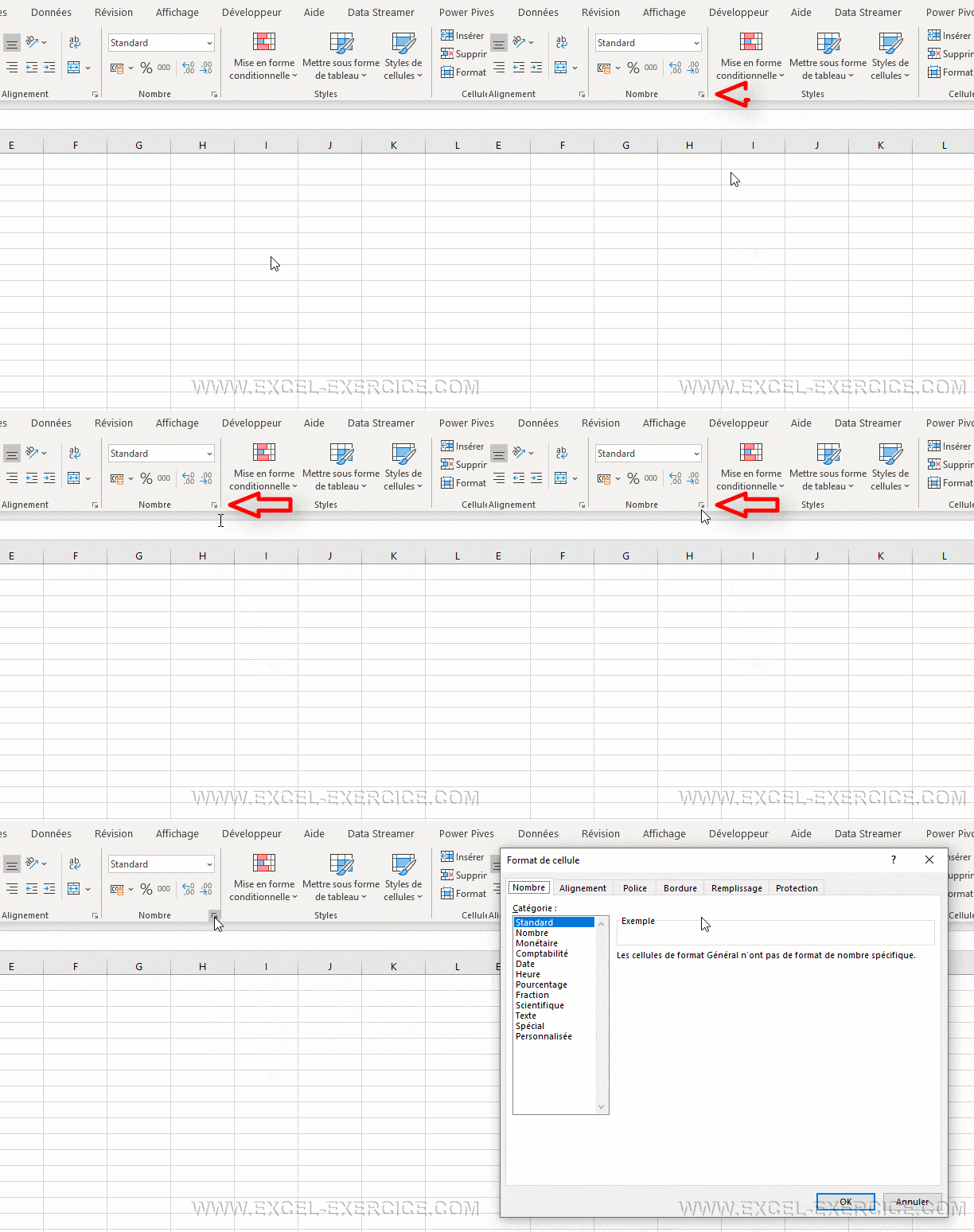
  1. Open the All Options window for a cell by clicking the ribbon arrow. You can do this with the section
    • Name
    • Alignment
    • Police
Displaying the number customization menu
  1. Go to the tab Protection
  2. Then, the option must be Masked is well checked.
  3. It is also necessary that the option Locked be checked
The 2 protection options to hide the formulas
  1. Lock the spreadsheet where the formulas to be hidden are located.
    • Either from the menu Review > Protect Sheet
    • Either with the menu Home > Format > Protect sheet
Protect Sheet format menu to lock cells in Excel

Now when you go to select a locked and hidden cell, the formula is not displayed in the formula bar 😁👍

The formula is not visible in the formula bar

LAMBDA functions

LAMBDA functions are special functions. They were created for you to write your own functions. Let's take the example of functions that generate random first and last names.

LAMBDA function to hide the real formula

While behind this name there is a very complex formula.

Viewing the Lambda Formula in the Name Manager

So with Lambda, the goal is not to truly hide a formula because it is always accessible by the name manager. But it is made difficult to see to prevent your users from making changes. This way you protect your complex functions.

Related Articles

Leave comments

Your email address will not be published. Required fields are marked with *

This site uses Akismet to reduce unwanted. Learn more about how your feedback data is processed.

Microsoft MVP 2024

Newsletter

Once a month:
Tips and quizzes

    We won't spam you. You can unsubscribe at any time.

    Hide formulas in Excel

    Reading time: 2 minutes
    Last updated on 06/08/2025

    To protect your formulas in Excel, you can either hide them or embed them in a LAMBDA function.

    Hide a formula from the cell protection options

    To make a formula invisible in the formula bar, we will use the principle of locking a cell. In the world of finance, where calculations are very complex, such as decreasing depreciation, you have to protect your formulas.

    Decreasing depreciation function to hide
    1. Open the All Options window for a cell by clicking the ribbon arrow. You can do this with the section
      • Name
      • Alignment
      • Police
    Displaying the number customization menu
    1. Go to the tab Protection
    2. Then, the option must be Masked is well checked.
    3. It is also necessary that the option Locked be checked
    The 2 protection options to hide the formulas
    1. Lock the spreadsheet where the formulas to be hidden are located.
      • Either from the menu Review > Protect Sheet
      • Either with the menu Home > Format > Protect sheet
    Protect Sheet format menu to lock cells in Excel

    Now when you go to select a locked and hidden cell, the formula is not displayed in the formula bar 😁👍

    The formula is not visible in the formula bar

    LAMBDA functions

    LAMBDA functions are special functions. They were created for you to write your own functions. Let's take the example of functions that generate random first and last names.

    LAMBDA function to hide the real formula

    While behind this name there is a very complex formula.

    Viewing the Lambda Formula in the Name Manager

    So with Lambda, the goal is not to truly hide a formula because it is always accessible by the name manager. But it is made difficult to see to prevent your users from making changes. This way you protect your complex functions.

    Related Articles

    Newsletter

    Once a month:
    Tips and quizzes

      We won't spam you. You can unsubscribe at any time.

      Leave comments

      Your email address will not be published. Required fields are marked with *

      This site uses Akismet to reduce unwanted. Learn more about how your feedback data is processed.