Find values ​​present only once

Last updated on 23/08/2024
Reading time : 2 minutes

How to find values ​​that are only present once in a list of data?

Extracting a list without duplicates is very simple thanks to the UNIQUE function. But this function can also return you only values ​​that are present only once. But if you don't have the propagated functions in Excel, this article will show you a technique with the COUNTIF function.

The UNIQUE function

La UNIQUE function allows you to extract without duplicates all the values ​​present in a column. This function is only available on versions of Excel 365, Excel Online and Excel 2021.
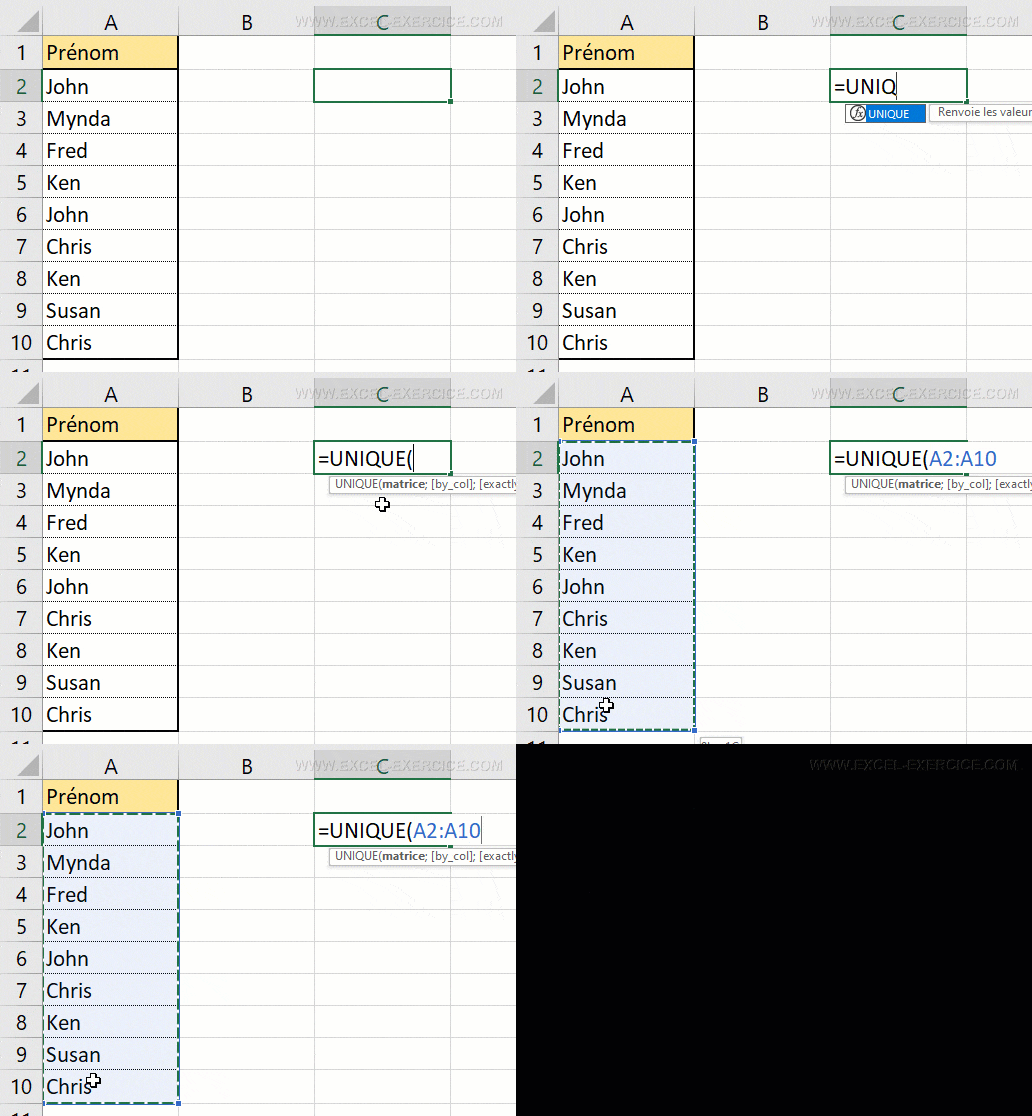
UNIQUE function

But written like this, the UNIQUE function returns both values ​​present only once and duplicate values ????

Method 1: Extract unique values

To extract the elements present only once, we will use the same formula. Indeed, Excel's UNIQUE function offers an option not to focus ONLY on unique values. This option is the 3rd parameter which must be positioned at TRUE.

=UNIQUE(A2:A10;;TRUE)
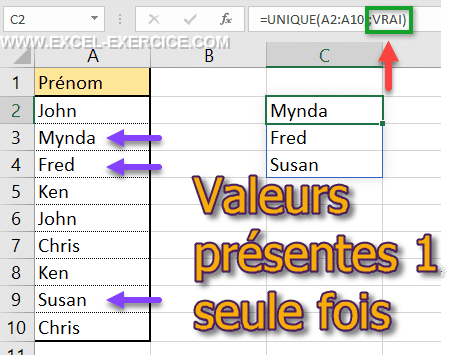
Extract the elements present only once

Method 2: Fix the problem with the COUNTIF function

If you do not have the UNIQUE function in your version of Excel, you can still find the values ​​present only once. Just use the COUNTIF function as follows.

=NB.IF.ENS($A$2:$A$10;A2)

NB.SI .ENS formula to find unique values

Then just apply a filter.

And only select the value 1.

Keep only values ​​equal to 1

To only keep values ​​present once in the list.

Values ​​presented only once with the filter

You can also do the opposite. Namely select all values ​​different from 1 and delete them. Like this, only unique values ​​will be kept in your Excel column.

Related articles

2 Comments

  1. Redwan
    03/11/2022 @ 16:07 p.m.

    Hello Mr. Le Guen,

    First of all, thank you for your site which is a mine of information and training!

    I am currently facing a problem (that others must have encountered): The version I am using allowed me to create a sort of material order catalog thanks in particular to the UNIQUE and FILTER functions combined with a check box. check form control. However, the company's Excel version (2016...) does not allow me to use this file!

    By keeping the current checkbox system which returns the list of materials chosen on a summary sheet (A cell for a material), is there a function or macro equivalent to the UNIQUE and FILTER functions which would allow me to group into column and by removing the empty boxes the materials chosen automatically (without Excel manipulation of the person ordering, at least nothing more than a button which would launch the macro)?

    Thank you in advance.

    Sincerely,
    Redwan

    Reply

    • Frédéric LE GUEN
      07/11/2022 @ 12:01 p.m.

      Yes, in macro we can carry out this work but it is a lot of development

      Reply

Leave comments

Your email address will not be published. Required fields are marked with *

This site uses Akismet to reduce unwanted. Learn more about how your feedback data is processed.

Microsoft MVP 2024

Newsletter

Once a month:
Tips and quizzes

    We won't spam you. You can unsubscribe at any time.

    Find values ​​present only once

    Reading time: 2 minutes
    Last updated on 23/08/2024

    How to find values ​​that are only present once in a list of data?

    Extracting a list without duplicates is very simple thanks to the UNIQUE function. But this function can also return you only values ​​that are present only once. But if you don't have the propagated functions in Excel, this article will show you a technique with the COUNTIF function.

    The UNIQUE function

    La UNIQUE function allows you to extract without duplicates all the values ​​present in a column. This function is only available on versions of Excel 365, Excel Online and Excel 2021.

    UNIQUE function

    But written like this, the UNIQUE function returns both values ​​present only once and duplicate values ????

    Method 1: Extract unique values

    To extract the elements present only once, we will use the same formula. Indeed, Excel's UNIQUE function offers an option not to focus ONLY on unique values. This option is the 3rd parameter which must be positioned at TRUE.

    =UNIQUE(A2:A10;;TRUE)

    Extract the elements present only once

    Method 2: Fix the problem with the COUNTIF function

    If you do not have the UNIQUE function in your version of Excel, you can still find the values ​​present only once. Just use the COUNTIF function as follows.

    =NB.IF.ENS($A$2:$A$10;A2)

    NB.SI .ENS formula to find unique values

    Then just apply a filter.

    And only select the value 1.

    Keep only values ​​equal to 1

    To only keep values ​​present once in the list.

    Values ​​presented only once with the filter

    You can also do the opposite. Namely select all values ​​different from 1 and delete them. Like this, only unique values ​​will be kept in your Excel column.

    Related articles

    Newsletter

    Once a month:
    Tips and quizzes

      We won't spam you. You can unsubscribe at any time.

      2 Comments

      1. Redwan
        03/11/2022 @ 16:07 p.m.

        Hello Mr. Le Guen,

        First of all, thank you for your site which is a mine of information and training!

        I am currently facing a problem (that others must have encountered): The version I am using allowed me to create a sort of material order catalog thanks in particular to the UNIQUE and FILTER functions combined with a check box. check form control. However, the company's Excel version (2016...) does not allow me to use this file!

        By keeping the current checkbox system which returns the list of materials chosen on a summary sheet (A cell for a material), is there a function or macro equivalent to the UNIQUE and FILTER functions which would allow me to group into column and by removing the empty boxes the materials chosen automatically (without Excel manipulation of the person ordering, at least nothing more than a button which would launch the macro)?

        Thank you in advance.

        Sincerely,
        Redwan

        Reply

        • Frédéric LE GUEN
          07/11/2022 @ 12:01 p.m.

          Yes, in macro we can carry out this work but it is a lot of development

          Reply

      Leave comments

      Your email address will not be published. Required fields are marked with *

      This site uses Akismet to reduce unwanted. Learn more about how your feedback data is processed.