Convert Degree, Minute, Second to decimal

Last updated on 26/05/2024
Reading time : 3 minutes

This article will show you how to convert written latitudes and longitudes into Degree, Minute, Second (DMS) in decimal writing. But also the opposite : Decimal coordinate in Degree, Minute and Second.

Data conversion problem

As you can see in the image opposite, a GPS coordinate written with the symbols ° ' and '' transform the GPS reference in text (framing to the left of the cell).
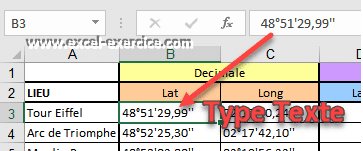
The coordinates are written in text without being able to perform the transformation

EIf you keep the Text, you will not be able to calculate the conversion. We must therefore transform this writing into a digital format to be able to carry out the conversion.

The only way is to go through the time format so that Excel can interpret it.

Step 1: Write in hourly format

First of all, you need to write your GPS readings in hours, minutes, seconds as if they were an hour, using the separator symbol ""

By entering the value 48:51:29.99, Excel returns the following information to you.

03/01/1904 00:51:30

Writing GPS coordinates in date format

Already, the value is not displayed as it should and especially why it is 03/01/1904. We will see all this at step 3

Step 2: Change an Excel option to handle negative hours

You cannot enter directly a negative hour in Excel ⛔⛔⛔. To get around this obstacle, you must write the time in quotation marks preceded by the "-" sign, like this

=-"01:30:40"

Display problem for negative GPS coordinates

Only now we have another problem: Excel does not display negative times

To remedy, 2 different solutions are possible. Here we choose the solution of 'Calendar since 1904' to correct this display problem.

Advanced option Calendar 1904

Step 3: Customize the hour format

By default, in Excel, as soon as the number of hours exceeds 24 hours, Excel considers it to be one more day. But it is possible to work around the problem by playing on the format of hourly numbers.

  • Open format customization (Ctrl+1)
  • Select category custom
  • In the Type box, enter the type [h]°mm'ss.00\''

GPS coordinates are displayed in Degrees, Minutes, Seconds format and the format is digital. The coordinates of the Eiffel Tower are now displayed correctly

48:51:29.99
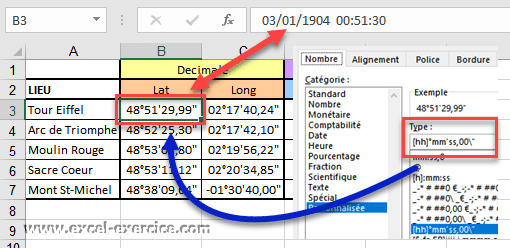
Displaying GPS coordinates

Step 4: Last step, do the conversion calculation

Now that we have created our sheet with numbers in Degrees/Minutes/Seconds format, we will create the calculation formula in D3 to convert the coordinates of B3.

Formula to convert a GPS coordinate to decimal

To do this, simply multiply each cell By 24 (number of hours in a day?).

= B3 * 24

All you have to do is change the format of the cells to format Standard to display the expected result.

Converting GPS coordinates to decimal format

Convert decimal number to Degrees/Minutes/Seconds

Conversely, to convert a decimal value into degrees, minutes, seconds, you must

  • First perform a mathematical operation
  • Then apply the same custom formatting

To convert a decimal number to Degrees, minutes, seconds, simply divide the value by 24 (24 hours in a day).

=B3/24

Formula to return GPS coordinates in decimal format

Then you apply the same number format that we created in step 3.

Related Articles

3 Comments

  1. Victoria
    01/08/2024 @ 03:11 p.m.

    thank you very much for this tutorial, very clear and super practical for converting several coordinates at the same time.
    Only problem 🙁 I followed all the steps to the letter to convert from decimal to degree minute second (divide by 24 then the format) but when I enter the formula for the personalized display I get an error message.. . so I can't finish this conversion :/
    I'm interested :

    “Excel cannot use the number format you typed.
    Try using a predefined number format.
    For more information on custom number formats, click Help"

    A solution for this last problem?

    thank you anyway 🙂

    Reply

    • Frédéric LE GUEN
      01/08/2024 @ 10:17 p.m.

      What code do you enter?

      Reply

  2. BALOGOUN
    05/11/2020 @ 11:57 p.m.

    Thank you for this contribution. Please can I have the excel file?

    Reply

Leave comments

Your email address will not be published. Required fields are marked with *

This site uses Akismet to reduce unwanted. Learn more about how your feedback data is processed.

Microsoft MVP 2024

Newsletter

Once a month:
Tips and quizzes

    We won't spam you. You can unsubscribe at any time.

    Convert Degree, Minute, Second to decimal

    Reading time: 3 minutes
    Last updated on 26/05/2024

    This article will show you how to convert written latitudes and longitudes into Degree, Minute, Second (DMS) in decimal writing. But also the opposite : Decimal coordinate in Degree, Minute and Second.

    Data conversion problem

    As you can see in the image opposite, a GPS coordinate written with the symbols ° ' and '' transform the GPS reference in text (framing to the left of the cell).

    The coordinates are written in text without being able to perform the transformation

    EIf you keep the Text, you will not be able to calculate the conversion. We must therefore transform this writing into a digital format to be able to carry out the conversion.

    The only way is to go through the time format so that Excel can interpret it.

    Step 1: Write in hourly format

    First of all, you need to write your GPS readings in hours, minutes, seconds as if they were an hour, using the separator symbol ""

    By entering the value 48:51:29.99, Excel returns the following information to you.

    03/01/1904 00:51:30

    Writing GPS coordinates in date format

    Already, the value is not displayed as it should and especially why it is 03/01/1904. We will see all this at step 3

    Step 2: Change an Excel option to handle negative hours

    You cannot enter directly a negative hour in Excel ⛔⛔⛔. To get around this obstacle, you must write the time in quotation marks preceded by the "-" sign, like this

    =-"01:30:40"

    Display problem for negative GPS coordinates

    Only now we have another problem: Excel does not display negative times

    To remedy, 2 different solutions are possible. Here we choose the solution of 'Calendar since 1904' to correct this display problem.

    Advanced option Calendar 1904

    Step 3: Customize the hour format

    By default, in Excel, as soon as the number of hours exceeds 24 hours, Excel considers it to be one more day. But it is possible to work around the problem by playing on the format of hourly numbers.

    • Open format customization (Ctrl+1)
    • Select category custom
    • In the Type box, enter the type [h]°mm'ss.00\''

    GPS coordinates are displayed in Degrees, Minutes, Seconds format and the format is digital. The coordinates of the Eiffel Tower are now displayed correctly

    48:51:29.99

    Displaying GPS coordinates

    Step 4: Last step, do the conversion calculation

    Now that we have created our sheet with numbers in Degrees/Minutes/Seconds format, we will create the calculation formula in D3 to convert the coordinates of B3.

    Formula to convert a GPS coordinate to decimal

    To do this, simply multiply each cell By 24 (number of hours in a day?).

    = B3 * 24

    All you have to do is change the format of the cells to format Standard to display the expected result.

    Converting GPS coordinates to decimal format

    Convert decimal number to Degrees/Minutes/Seconds

    Conversely, to convert a decimal value into degrees, minutes, seconds, you must

    • First perform a mathematical operation
    • Then apply the same custom formatting

    To convert a decimal number to Degrees, minutes, seconds, simply divide the value by 24 (24 hours in a day).

    =B3/24

    Formula to return GPS coordinates in decimal format

    Then you apply the same number format that we created in step 3.

    Related Articles

    Newsletter

    Once a month:
    Tips and quizzes

      We won't spam you. You can unsubscribe at any time.

      3 Comments

      1. Victoria
        01/08/2024 @ 03:11 p.m.

        thank you very much for this tutorial, very clear and super practical for converting several coordinates at the same time.
        Only problem 🙁 I followed all the steps to the letter to convert from decimal to degree minute second (divide by 24 then the format) but when I enter the formula for the personalized display I get an error message.. . so I can't finish this conversion :/
        I'm interested :

        “Excel cannot use the number format you typed.
        Try using a predefined number format.
        For more information on custom number formats, click Help"

        A solution for this last problem?

        thank you anyway 🙂

        Reply

        • Frédéric LE GUEN
          01/08/2024 @ 10:17 p.m.

          What code do you enter?

          Reply

      2. BALOGOUN
        05/11/2020 @ 11:57 p.m.

        Thank you for this contribution. Please can I have the excel file?

        Reply

      Leave comments

      Your email address will not be published. Required fields are marked with *

      This site uses Akismet to reduce unwanted. Learn more about how your feedback data is processed.